
How to Add Live Chat to Your Website (Free, No Code)
By the Stellah Team · Updated July 26, 2026
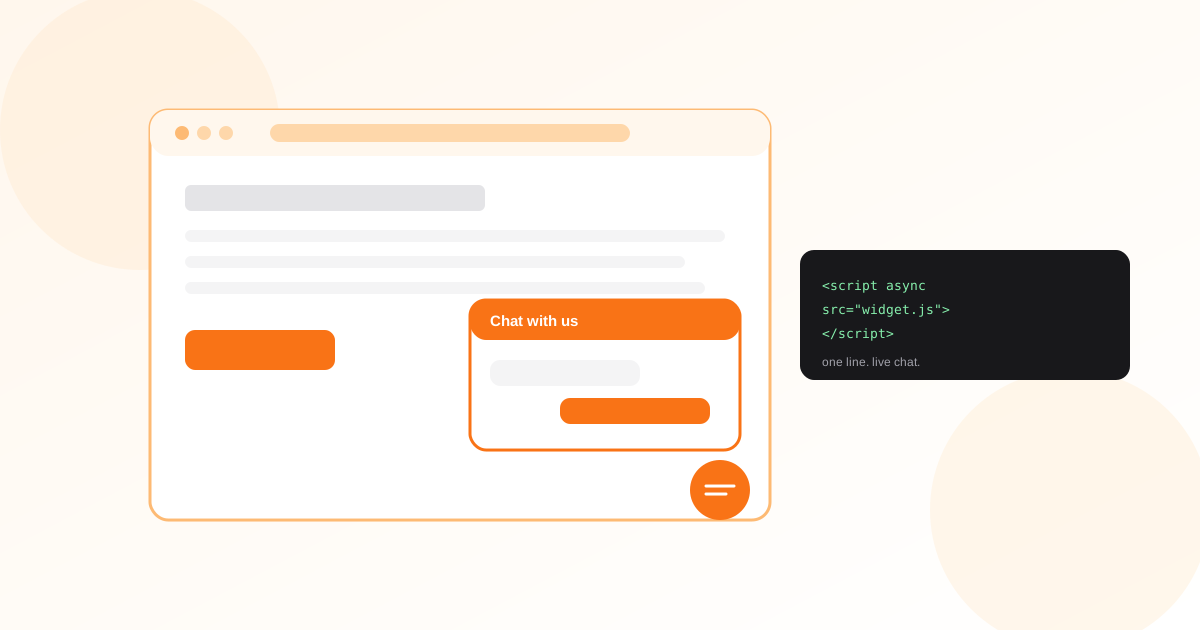
Live chat turns a passive website into a conversation. Visitors who would have bounced instead ask their question and get an answer — and you capture a lead or close a sale you'd otherwise have lost. The best part: adding it takes minutes and no code.
Here's how to add live chat to any website, what to look for in a tool, and how to pair it with AI so you're covered even when you're asleep.
How live chat actually gets onto your site
Nearly every live chat tool works the same way: you copy a short snippet of embed code and paste it into your site once. From then on, the chat widget appears in the corner of every page, and you manage everything from a dashboard. No plugins to maintain, no redeploys.
Add it in three steps
That's it. Refresh your site and the chat bubble appears. Most platforms, including WordPress, Shopify, Wix, Squarespace, and Webflow, have a spot to paste custom code without touching a template.
- 1Create an account with a live chat provider and open the install or widget section.
- 2Copy the one-line embed snippet (it looks like a single <script> tag).
- 3Paste it into your site before the closing body tag — via your CMS, site builder, or a tag manager — and publish.
What to look for in a live chat tool
- A no-code, one-line install that works on your platform
- Mobile-friendly widget you can match to your brand colors
- AI answers for when you're away, with a clean handoff to a human
- A shared inbox so your team can reply together
- Visitor context — page, location, and history — so replies are informed
The catch with pure live chat (and the fix)
Live chat only works when someone's online. A visitor at 11pm who gets no reply is worse than no chat at all. The fix is to back live chat with AI: the AI answers instantly around the clock, and the moment a human is available or the question needs judgment, it hands the conversation over — with the full history intact.
Add AI-backed live chat to your site with one line of code.
Get started freeAfter it's live
Watch which pages generate the most chats and what people ask. Those questions are a free content brief — turn the common ones into FAQ answers and let your AI handle them automatically, so live chat time goes to the conversations that move the needle.
Turn your common questions into a ready-to-use FAQ.
Free AI FAQ GeneratorFrequently asked questions
How do I add live chat to my website for free?
Create an account with a free live chat provider, copy the one-line embed snippet, and paste it into your site before the closing body tag using your CMS or site builder's custom-code field. The widget appears immediately — no developer required.
Can I add live chat without coding?
Yes. Modern live chat is a single copy-paste snippet. Platforms like WordPress, Shopify, Wix, Squarespace, and Webflow all have a place to paste it, or you can add it through a tag manager.
What happens to chats when I'm offline?
With a plain live chat tool, offline messages sit until you return. Pairing live chat with AI solves this: the AI answers instantly 24/7 and hands off to you when you're back, so no visitor is ignored.
Will live chat slow down my website?
A well-built widget loads asynchronously, meaning it loads after your page and doesn't block it. Look for an async one-line script, which keeps the impact on page speed negligible.